How to Self Reset your DepEd Microsoft Account
Please refer to this Microsoft article
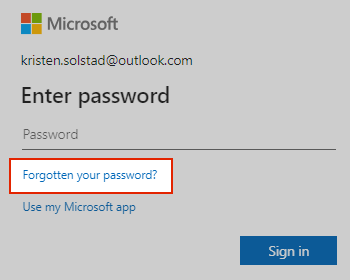
1. Select Forgot password?
If the "Enter password" window is still open select Forgotten your password?
If not, select Reset password below, enter the username name for the account you’re trying to reset, and select Next.
2. Verify your identity
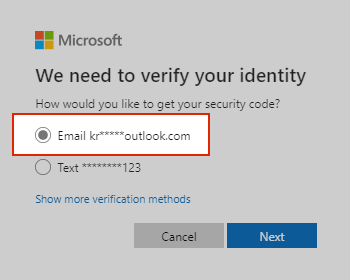
For your protection, Microsoft must verify your identity before you can proceed with resetting your password.
-
Choose how you want to receive a verification code.
Important:
-
If you don’t see an option for where to send a code, or you no longer have access to any of the verification options shown, use this sign-in helper tool.
-
If you don't recognize any of the verification email or phone options, use this sign-in helper tool.
-
-
Select Next.
3. Get a verification code
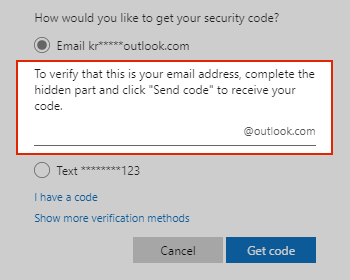
For your protection, we will ask you to confirm the verification details you select.
-
Retype the first part of the email address or the last four digits of the phone number hinted at in the previous window.
-
Select Get code.
-
Microsoft will send a verification code to the email or phone number you selected.
-
Go to the recovery phone or email for where you expect to receive the code.
4. Enter code and reset password
Confirm the code to create a new password. Learn how to create a strong password.
-
Paste or type the code you received and select Next.
-
Type your new password and select Next.
taken from this link